Difference between revisions of "Simple Sprite Motion Assignment"
From WLCS
(New page: ** Create a visual basic program that looks like Image:simpleSprite.jpg ** Each of the arrow keys is a button with an arrow on it, or you can use the words "Up," "Down," "Left," and "R...) |
|||
| Line 1: | Line 1: | ||
| − | + | * Create a visual basic program that looks like [[Image:simpleSprite.jpg]] | |
| − | + | * Each of the arrow keys is a button with an arrow on it, or you can use the words "Up," "Down," "Left," and "Right" | |
| − | + | * You should put a colored label on the screen | |
| − | + | * Read pp. 402-403 | |
| − | + | * You may control the location properties of the label (lbl.Top and lbl.Left) | |
| − | + | * Your program should change the position of the label on the screen when you hit the buttons. For example, if you hit the Up button, then your label should move | |
Revision as of 12:19, 20 October 2008
- Create a visual basic program that looks like
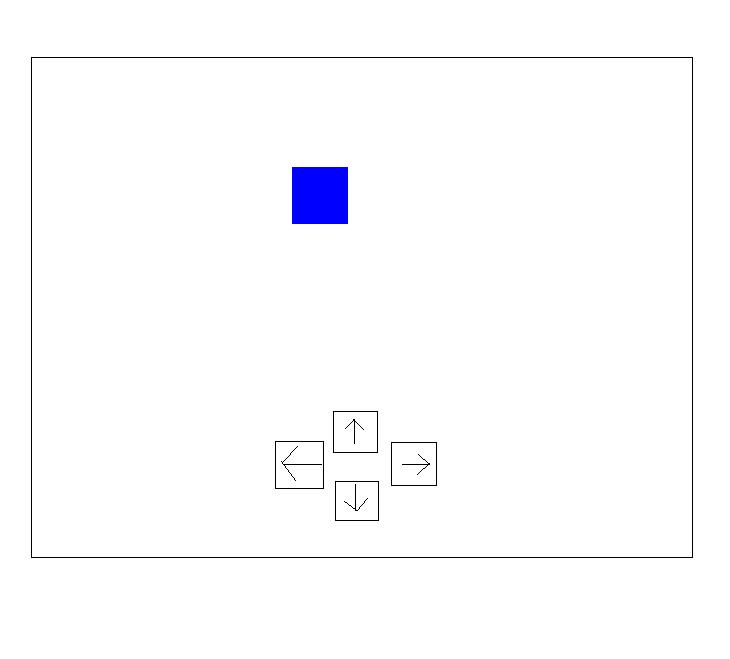
- Each of the arrow keys is a button with an arrow on it, or you can use the words "Up," "Down," "Left," and "Right"
- You should put a colored label on the screen
- Read pp. 402-403
- You may control the location properties of the label (lbl.Top and lbl.Left)
- Your program should change the position of the label on the screen when you hit the buttons. For example, if you hit the Up button, then your label should move


